
Embedded content exactly where it sells
Place forms, offers, and recommendations in selected store locations without rebuilding the entire page.
Customer experience
The content looks like part of your store
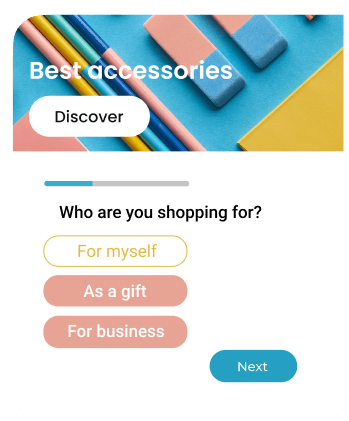
An Embed appears exactly where you place it. It does not open a new window or cover products, so a form, offer, or recommendation looks like a natural part of the store.
Content appears where you need it
It can sit next to a product description, in the cart, on a category page, or in a newsletter area.
Customers use it without leaving the page
A form, button, or offer works without interrupting shopping.
A response can trigger the next step
A signup or click can automatically send the next message.
Display rules
You choose the exact place and position
Place an Embed before, after, or directly inside a selected section. You also decide which pages display it and who sees it.
- Next to a product description or images
- In the cart or order summary
- On a category page or homepage
- Before, after, or inside a selected section
- For new or returning customers
- On selected devices and at selected times
Your setup
How to launch an Embed
Choose the task, prepare the content, and point to a place in your store. If you are unsure how to find the right page section, we will help you set it up.
Choose the task
Decide whether you want to collect a contact, promote an offer, recommend products, or provide additional information.
Prepare the content and design
Add text, an image, form, or button and match the design to your store. You can also use the AI assistant.
Point to a place in your store
Choose the page and section where the content should appear, launch the campaign, and review results in DropUI.
FAQ
Common Embed questions
An Embed becomes part of the store page and does not open over its content. It stays in the selected place like any other page section.
For example, next to a product description, in the cart, on a category page, homepage, or in a newsletter area.
Usually not. You select the place and insertion method in the dashboard. If you do not know the identifier of a store section, we will help you find and configure it.
You can use text, images, forms, buttons, product recommendations, countdowns, surveys, and other available elements.
No. Match the content to the current page, audience, device, traffic source, and other campaign rules.
Yes. You can prepare a design for smaller screens and decide which devices should display the campaign.
See how to use Embed in practice
Explore ready scenarios for collecting contacts, presenting offers, and recommending products directly on store pages.
Explore scenarios